App Guide · Settings
Settings & organization
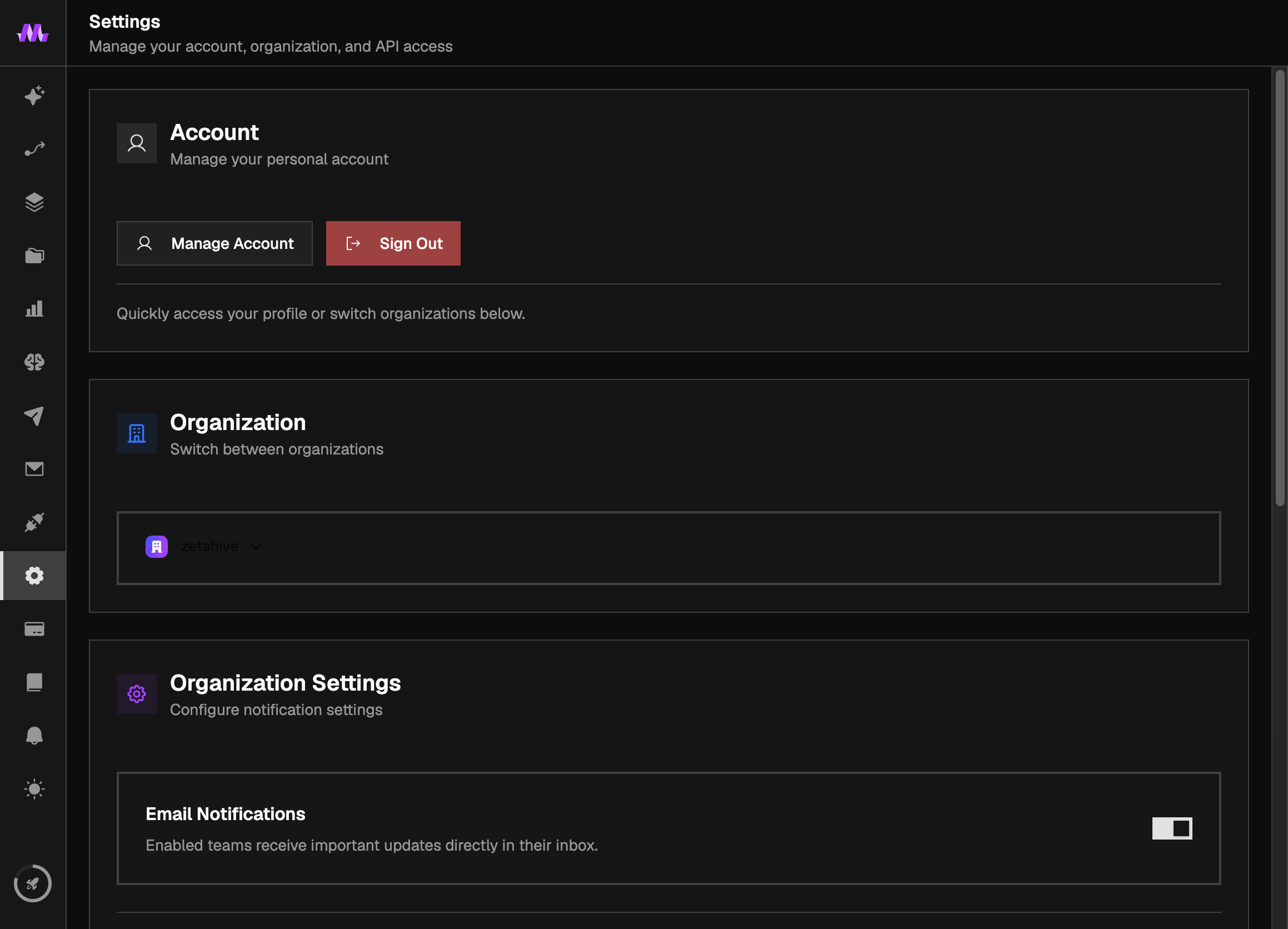
Settings is the control room for your organization: notification preferences, API keys for the developer interfaces, and account controls. Everything here is organization-wide, so it applies to all teammates in the workspace.
Notifications
Choose whether Monial emails you about important activity — failed deliveries, campaign replies, and similar alerts. The toggle is on by default so you hear about problems the moment they happen; turn it off if you'd rather check Monial yourself.
API key
If you want to drive Monial from your own code or automations, generate an API key here. The key authenticates the REST API for queries against your organization. The full reference, with a live playground, is in the API docs.
You can also generate a key during onboarding when the app asks for one — it's the same key, and it lives here afterwards.
Keep it safe
Treat your API key like a password. Anyone who has it can act on your organization's behalf, so don't paste it into shared documents or client-side code.
Connecting AI tools (MCP)
Settings also shows your MCP server URL — the address that lets AI tools like Claude and Cursor operate Monial for you. Copy the URL from this page and add it as a connector in your tool of choice; setup steps are in the MCP docs.
Account and organization
Profile
Update your name, email, and password through your profile, opened from the account button on the Settings page.
Organizations
All of your data lives inside an organization. Use the organization switcher to move between workspaces (for example, a personal one and a team one) — each has its own settings, keys, and connected accounts.
Sign out
Sign out of this device from the Settings page when you're on a shared machine.